Aucun message portant le libellé Google. Afficher tous les messages

17 décembre 2009


Introducing Google Browser Size

When I started work at Google, I visited the Google Earth team, hoping to find a 20% project on my favorite Google product. There I met Bruno Bowden, who introduced me to a problem I had never thought much about: how to take browser sizes into account when designing a page.

Bruno had noticed that many people who visit the “Download Google Earth” page never actually download, even though, as you can see, the button is pretty hard to miss:


He wondered if a significant number of users might have their browser windows too small to see the button:


To analyze this, Bruno looked at how large people's browser windows were when they visited this page. His first key idea was to measure not the entire browser window, but just the client area -- no toolbars, status bars, or other chrome.

Bruno's second key idea was to render several weeks' worth of page visitor browser sizes in a contour visualization:


Using this visualization, Bruno confirmed that about 10% of users couldn't see the download button without scrolling, and thus never noticed it. 10% may not sound like a lot, but in this context it turns out to mean a significant number of people weren't downloading Google Earth. Using this data, the team was able to redesign the page to good effect.

Bruno and I realized that Web designers might benefit from this information if it could be made more generally available. We constructed a page that could overlay a DIV containing the contour visualization atop an IFRAME containing any other Web page:


This turned out to be a good way to see which controls were and weren't visible at typical browser sizes. The only problem was, the overlay DIV prevented mouse events from getting to the page IFRAME, so it wasn't possible to interact with the page.

To solve this, we split the overlay DIV into four:


Each of the outlines above (red, yellow, blue, green) represents a separate DIV. As the mouse pointer moves, we resize and reposition the DIVs to leave a small window of blank space around the pointer, and adjust background offsets for each DIV to make the overlay look like one seamless graphic. (We originally did this on a timer, but we found a simpler way: when the mouse touches any of the DIVs, resize/reposition all of the DIVs.) End result: a designer can click and otherwise interact with the page with the mouse, and thus interact with the site normally instead of repeatedly typing in URLs.

We are now making this tool available to the public on Google Labs. To try it, simply visit browsersize.googlelabs.com and enter the URL of a page you'd like to examine. The size overlay you see is using latest data from visitors to google.com, so this should give you a pretty good indication of what parts of your UI are generally visible and what aren't.

We look forward to receiving your comments at browser-size-external-feedback!


9 décembre 2009


Faster apps for a faster web: introducing Speed Tracer

Do you ever wonder what's going on inside the browser when a webpage doesn't load or respond as quickly as it should? Many developers do, especially when trying to build powerful web applications for their users.

But up until now, it's been difficult for developers to identify problems in a slow-to-respond application. So, tonight at Google Campfire One, we're happy to announce that we're adding a new tool to Google Web Toolkit called Speed Tracer.

Speed Tracer is a Google Chrome extension that enables developers to identify performance problems in their web apps using a "Sluggishness Graph," in combination with many other metrics. In the spirit of clean, simple design, developers need only look at the Y-Axis of their application's Sluggishness Graph to see how they're doing:
  • If the y-axis is close to zero, then the app is fast
  • If the y-axis registers around 100%, then the app is, well, sluggish
And in either case, Speed Tracer provides lots of additional data to help diagnose any particular performance issue.

More @ http://googleblog.blogspot.com/2009/12/faster-apps-for-faster-web-introducing.html

7 octobre 2009


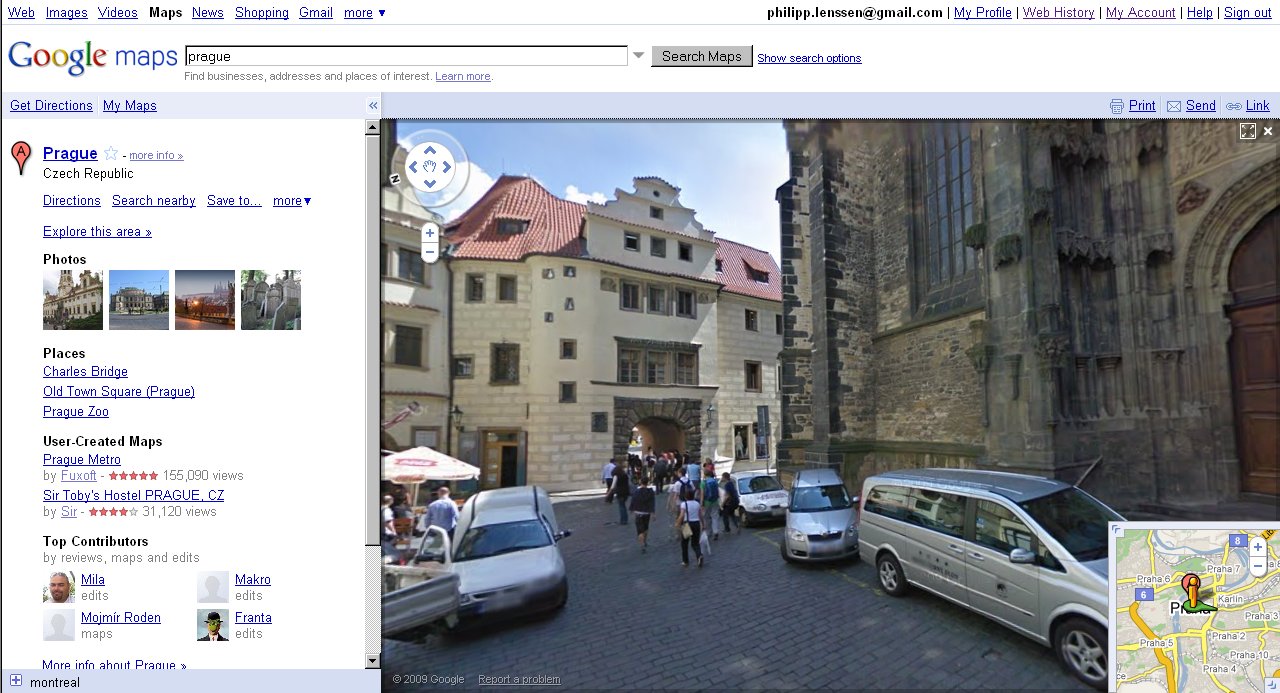
Google Street View for Canada, Czech Republic


Google has launched Street View imagery for Canada and the Czech Republic. Above are snapshots from Montreal and Prague.
[Thanks TomHTML!]
[By Philipp Lenssen | Origin: Google Street View for Canada, Czech Republic | Comments]

1 octobre 2009


Google Wave First Look [Screenshot Tour]

If you're not one of the 100,000 lucky users who gets an invitation to Google Wave today, don't fret. You can check out Google Wave right here.
But first, ground rules. Click on all images in this post to see them full size. Uppercase 'Wave' refers to the entire Google Wave product. Lowercase 'wave' refers to an individual message or document. Think of a lowercase wave like an email or a Google Doc that you're collaborating on with other people. The screenshots in this post are from the Wave developer preview, not wave.google.com, invites to which are going out today. We'll update this post with anything significantly new in the non-preview version when we get our grubby little paws on the proper server invitation.
Ready? Let's go.

Inside Google Wave

When you log into Wave, the default view is a three-column, 4-module layout. From left to right, the first column includes Navigation on top (think of this as your Inbox, Sent, and labels in Gmail) and Contacts below (think of this as your GTalk buddy list). The second column is the list of active waves in your Inbox, and the third column is where you can start a new wave or open a wave.
Here's what it looks like. (Click to enlarge.)

When someone updates a wave in your inbox, it turns bold and moves to the top of your inbox—just like email. If a contact of yours is online, a little green dot appears on his or her icon.
All the modules are collapsible and dock themselves in the upper part of the screen. If you've collapsed your inbox and a new wave gets updated, it flashes green. Here I've clicked on new wave and minimized all the other modules to expand my workspace. (Click to enlarge.)

You can add all sorts of rich content to your wave, like a YouTube video, Google Map, image, links, or anything that a gadget enables. (More on gadgets below.) Here I've added some colored text and embedded a video clip in my wave. (Click to enlarge.)

When I finish typing and click the Done button on my wave, Wave pops up the 'Add participants' module so I can share my wave with anyone on my contacts list. You can search for a contact by name, or just drag and drop anyone to the wave you choose. (Click to enlarge.)

Once you've shared a wave, the magic starts to happen. At first you'll swoon over the ability to watch your co-waver type in real-time. It's weird in a good, we're-living-in-the-future way to see another person's cursor hard at work outputting characters, key by key on your own screen. But you get over that novelty pretty quickly. (Most likely your IM client can do that; anyone who's used collaborative editors like SubEthaEdit has seen this as well.)
You can reply to an entire wave like an IM or an email by clicking the reply button on a wave's toolbar. But what's most cool is the ability to reply to bits of a message inline. This lets you and your collaborators annotate the wave as you go.
For example, I gave a talk about Wave here in San Diego, and prepared my talk notes in a wave. At the beginning, I did an audience survey to gauge the level of experience with Wave-like technology. I was able to insert replies to the questions in Wave as I went. (Even better would have been to have a co-presenter or note-taker do that for me.)
You can collapse or expand inline comments easily. Here's what the talk wave looks like with comments collapsed. Notice the small talk bubbles on the top Audience survey section. (Click to enlarge.)

Here's what that same wave looks like with inline comments expanded. (Click to enlarge.)

Your replies inside or to a wave can also be marked as private; so if Jack and Jill and I are collaborating on a wave and Jill wants to tell me something about Jack in-wave that Jack shouldn't see, she can click on the drop-down on the upper right of a wave and choose 'Private Reply' as shown. (Click to enlarge.)

Once you've entered your private reply, Wave prompts you to add participants to just that reply. That's because every reply is a wave in and of itself. You can create a new wave from any reply or copy a wave to a new wave, too.
Besides real-time updates, another 'holy crap' feature of Google Wave is wave revision playback. If someone adds you to a wave late in the game, after lots of conversation and annotation has already happened, you can click on the playback button to see how it was constructed over time. Think of this like a slideshow through Wikipedia page revisions. Here's a quick video clip of what playback looks like on a wave I was in on this morning.
Just like Gmail, Google Wave offers powerful advanced search operators, wave tagging, file uploads (though those are wonky for me in the dev preview), and saved searches. In addition to tags, Wave also offers folders. Folders! The interface is completely drag-and-drop: you can grab any wave and drag it to the trash or a folder.

Wave Extensions: Gadgets and Robots

Wave is a completely extensible platform, like Firefox. Wave extensions come in two flavors: gadgets and robots.
A gadget is a piece of rich content that you can add to a wave. A few example gadgets are available in the Gadget gallery.


Click on the puzzle piece on a wave's toolbar to add a gadget to the wave. One useful gadget is the 'Who is Coming?' gadget that lets you invite folks to an event and get RSVPs quickly and easily.


The most useful gadget I've seen so far is the Ribbit conference call gadget. Add it to a wave, and everyone adds their phone number to it. (You only see your own number, not everyone else's.) Click the "Start Conference" button, and everyone's phone rings—and you're on the phone, while you collaborate on a wave. (Click to enlarge.)

For more on the Ribbit Wave gadget, check out Rafe Needleman's review.
Robots are email addresses that you add to your contact list. Then, when you are in need of their services, you add a bot to a wave so they can perform some action on its contents. A robot can modify the contents of a wave, and several already exist that do silly to useful actions.
For example, Eliza the Robot Shrink (elizarobot@appspot.com) will chat with you about anything—useful when you're the only one of your friends who has a Wave invite and you've no one to talk to.

More usefully, the Bloggy bot (blog-wave@appspot.com) will publish a wave onto a Blogger blog for you. For example, I have Bloggy in my contacts, and added it to my Wave talk wave as shown here. Notice the 'Bloggy published this wave here' message in yellow at the top of the wave. (Click to enlarge.)

Click on the 'here' link and you go to my test Wave blog, which gets the contents of that wave on it. (Click to enlarge.)

If another Wave user happens upon that blog post, s/he can comment on it in-blog, and those new updates will show up in my Wave client. Right now, you have to be logged into Wave to see blogged content; but that won't always be the case. Google is working on making published Wave content read-only for all users, even those not logged into Wave.
Polly the Pollster (polly-wave@appspot.com) is another extremely useful bot which lets you create and distribute polls to survey wave collaborators quickly.

Other bots do things like automatically link Twitter usernames to their Twitter page, clean up empty replies (which proliferate quickly for some reason), and insert stock quotes. I expect we'll see tons more gadgets and bots bloom over the next year. Here are some more featured Wave extensions, courtesy of Google.

But What Will We Use Google Wave For?

The most frequent question I get about Google Wave is: "But what would I use it for?" Personally I can't wait to use it to take meeting minutes collaboratively and to co-write documents like blog posts and articles online with my editors and co-conspirators. Instead of using something like Campfire or IRC to chat with my fellow Lifehacker editors, I could see using Wave as group chat—but with inline and private replies, which are key.
Right now, like all collaboration tools, Wave is only as good as how many of the people you work (and play) with have it. Even though I was one of the developers touched by an angel, with access to the preview, I didn't actually use Wave very much because almost zero of my actual friends and co-workers were on it. So as far as I can see, uses for Wave in your life will open up as the product itself opens up to more users who care enough to wrap their heads around it and start putting valuable information in it.
If you're more of a moving-pictures learner, Google's new Wave overview video nicely illustrates some of the features I've highlighted above.

Got questions about Google Wave? Post 'em up in the comments, and we'll answer what we can.
Gina Trapani, Lifehacker's founding editor, is trying to resist a bad Wave pun. Her weekly feature, Smarterware, appears every Wednesday on Lifehacker. Subscribe to the Smarterware tag feed to get new installments in your newsreader.

23 septembre 2009


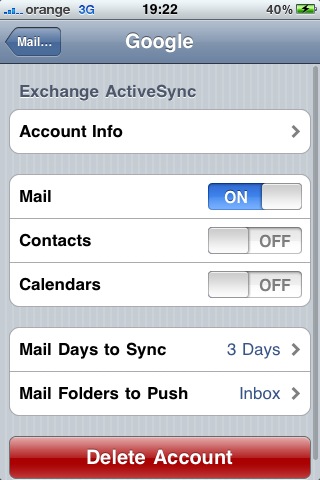
Google Sync: Now with push Gmail support

"Earlier this year, we launched Google Sync which allows you to synchronize your Gmail Contacts and Google Calendar with your iPhone, Windows Mobile, and S60 devices. Today, we're adding Gmail support to Google Sync for iPhone, iPod Touch and Windows Mobile devices.

Using Google Sync, you can now get your Gmail messages pushed directly to your phone. Having an over-the-air, always-on connection means that your inbox is up to date, no matter where you are or what you're doing. Sync works with your phone's native email application so there's no additional software needed. Only interested in syncing your Gmail, but not your Calendar? Google Sync allows you to sync just your Contacts, Calendar, or Gmail, or any combination of the three.


To try Google Sync, visit m.google.com/sync from your computer. If you're already using Google Sync, learn how to enable Gmail sync. Since push Gmail has been a popular request on our Product Ideas page and Help Forum, we look forward to hearing your feedback, so drop us a line and let us know how it's working or what you'd like to see next.

Douglas Gresham, Software Engineer, Google Mobile

Update at 8:20am: We jumped the gun on this post. The new feature should be rolling out in a few minutes.

Push Gmail for iPhone and Windows Mobile

"Two years after Yahoo surprised everyone by launching push Yahoo Mail for iPhone, Google adds push support for Gmail. And it's not limited to iPhone, it also works for Windows Mobile devices.

'Push e-mail is used to describe e-mail systems that provide an 'always-on' capability, in which new e-mail is instantly and actively transferred (pushed) as it arrives by the mail delivery agent (MDA) (commonly called mail server) to the mail user agent (MUA), also called the e-mail client. E-mail clients include smartphones and, less strictly, IMAP personal computer mail applications,' explains Wikipedia.

Instead of periodically fetching new messages, mail clients receive notifications as soon as there's a new message. Applications no longer waste bandwidth and you're able to read a message shortly after it was sent.

'Using Google Sync, you can now get your Gmail messages pushed directly to your phone. Having an over-the-air, always-on connection means that your inbox is up to date, no matter where you are or what you're doing. Sync works with your phone's native email application so there's no additional software needed.'

If you're already using Google Sync to synchronize your calendars and contacts, it's easy to edit the settings and enable it for mail, as well.


Unfortunately, there are some downsides to this feature, so you should only enable push support for Gmail if you really need it. 'Depending on your device, any push connection may use more power than fetching content at intervals. In some cases the difference in power usage may have a noticeable impact on your phone's battery life,' mentions Google.

Google explains the difference between using Google Sync, IMAP and Gmail's web application for mobile phones. 'Google Sync synchronizes Gmail, Google Calendars, and contacts with your mobile phone. You can use the Google services directly in the built-in Mail, Calendar and Contacts application on your phone. Google Sync offers some advantages over using IMAP on your phone. Most importantly, it allows for content to be pushed to your phone within seconds after changes occur on the server. On the other hand, using Gmail Drafts from your phone is not possible via Google Sync. On iPhone and iPod Touch devices, the Gmail web application offers the most comprehensive features and the best experience for most users. But for users who prefer using the native Mail application, Google Sync offers an alternative way to access their Gmail account.'

While Google Sync is also available for Blackberry, Nokia S60 devices and other mobile phones, push Gmail only works for Windows Mobile and iPhone devices that support ActiveSync. At least for now.


15 septembre 2009


Google's Data Liberation Site


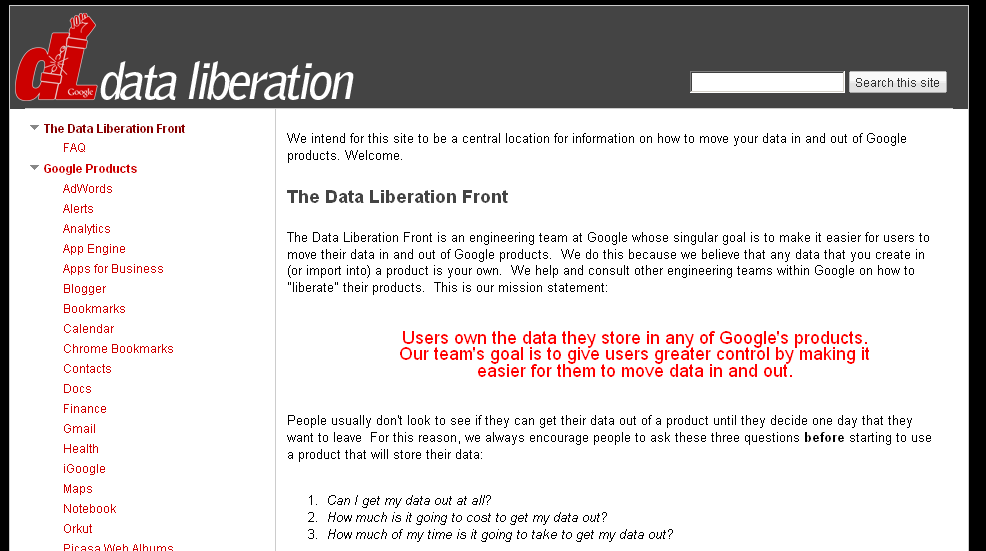
Google is emphasizing their proclaimed goal to let you easily import and export your Google data when moving services via a new site – DataLiberation.org*. The mission statement from the Data Liberation Front – named after a Monty Python skit about the Judean People’s Front – is that “Users own the data they store in any of Google’s products. Our team’s goal is to give users greater control by making it easier for them to move data in and out.” Thus the team wants to “make it easier for users to move their data in and out of Google products,” they say.


In a blog post Google clarifies that “a liberated product is one which has built-in features that make it easy (and free) to remove your data from the product in the event that you’d like to take it elsewhere.” When users are locked in, on the other hand, Google says there’s a strong temptation on the product makers side “to be complacent and focus less on making your product better.” Google says they’ve already “liberated” over half of all Google products – like Blogger and Gmail – and in the future want to liberate Google Sites and Google Docs as well.


Any company believing their software can beat competing software when fairly compared does well to push for a fair market, where switching is easy. By releasing export features for their own products they don’t only take away from fears people may have when contemplating a switch to their software. They also create an environment that pushes other companies (like Microsoft in particular) to release export features of their own, helping users leave competing products. That type of environment is a win for users.


Time will tell if Google’s own replacement of the lock-in strategy will become the strategy of heavily cross-connecting its services: for instance, connecting Gmail with Google Docs, Google Calendar with Google Maps, Google search with Blogger, and so on (all things which happen or did happen in the past). Because that too can convince a company to “focus less on making your product better”... as the company can then try switch over their massive user base, if they have one, through the effects the cross-connection comfort brings to users (say you may slightly prefer Acme Docs over Google Docs, but your favorite email client Google Mail just doesn’t offer to open attachments in Acme Docs, so you find sticking with Acme too bothersome to justify its slight advantage). Once we’re truly looking at an OS inside the browser, perhaps we’ll also want a way to liberate our online OS file type associations.


[Thanks DPic and Niniane!]


*I can’t directly access that site from China, as seems to be the case with (several? all? some?) newish domains.
[By Philipp Lenssen | Origin: Google's Data Liberation Site | Comments]

Google Fast Flip

"Google Labs has been very active lately. The most recent service launched in Google Labs is Fast Flip, a visual version of Google News that encourages serendipitous discoveries.

'Fast Flip is a new reading experience that combines the best elements of print and online articles. Like a print magazine, Fast Flip lets you browse sequentially through bundles of recent news, headlines and popular topics, as well as feeds from individual top publishers. As the name suggests, flipping through content is very fast, so you can quickly look through a lot of pages until you find something interesting,' explains Krishna Bharat, the man behind Google News.

The homepage shows thumbnails of the news articles and clicking on the thumbnail loads a screenshot of the article. You can't read the entire article in Google Fast Flip, so you need to visit the original source. The service shows articles from a small number of sources, including BBC News, New York Times, Newsweek and Slate.


The nice thing is that you can quickly go to the next preview by clicking on the blue right arrow or by using the right-arrow key. The service provides recommendation based on the articles you read, you email or explicitly like. There's also a mobile version optimized for iPhone and Android phones.

11 septembre 2009


You might as well jump!

It's time to announce another Blogger Birthday feature! Many users have been asking for an easy way to implement "Read more" links on their blog's index page. In fact, for years bloggers have been implementing "Read more" jump breaks themselves by manually editing their HTML --- a process that was complicated and error prone.

Today we are excited to announce our latest birthday present:Jump Breaks.

With Jump Breaks you can show just a snippet of your post on your blog's index page. Blogger will insert a "Read more" link to the full post page where your readers can keep reading.


How to Access Gmail When It’s Down [Gmail]

Last week's Gmail outage is just the latest in a long series of outages in our favorite webmail application, but you don't have to let that stop you from accessing your email and getting things done.

Access Gmail Through Alternate Modes

Just because the Gmail web interface went down doesn't mean that Gmail is entirely down—often you can continue to access your account using one of the alternate web interfaces, which often are still accessible even when the regular web interface goes down.
Here's a quick look at each alternate method, one at a time, from the simplest to the most complex. (The more complex solutions are often better long-term solutions, while the simpler solutions are probably the easiest if Gmail just went down and you haven't already prepared for it.)

Try Plain HTML

Your best bet is to bookmark the link for the Plain HTML version of Gmail (or just bookmark this post), so you can quickly switch to this alternate mode if Gmail is giving you trouble loading. http://mail.google.com/mail/?ui=html . It doesn't have all the fancy features that regular old Gmail does, but it can do the job just fine in a pinch.

Use Safe Mode

If you use a lot of different Gmail Labs features, you might find that some of them will conflict with each other, or possibly cause Gmail to stop working. You can use the Safe Mode link to disable all the Labs features and hopefully get Gmail back up and running again. Just visit this URL: http://mail.google.com/mail/?labs=0. Some people recommend using the older version or bypassing browser checking links, but they won't let you access the Labs settings.

Use the Mobile Versions

You can access the mobile phone versions of Gmail from your desktop computer, although they are very stripped down and lacking features. You'll be better off with the Plain HTML version, but in a pinch you can try the regular mobile version http://mail.google.com/mail/?ui=mobile or the more user-friendly iPhone version http://mail.google.com/mail/x/gdlakb-/gp/.

Use the iGoogle Gadget

We've seen numerous comments and emails from readers during Gmail outages recommending that the excellent Gmail gadget for iGoogle usually still works during a Gmail downtime. If you aren't an iGoogle user, you can still use the gadget by simply browsing to the following URL: http://www.google.com/ig/gmailmax

Use Gmail Offline Access

If you haven't already checked out the Google Gears-powered offline mode for Gmail, this is a must-use for anybody that really depends on Gmail access. You can continue to use your email whether Gmail is running or not, or even when your own internet goes out. It's not perfect, since it doesn't store every single email in your inbox locally, but it does store enough email to be a great solution.
The biggest benefit in daily use is the Flaky Connection Mode, which is a hybrid between the offline and online modes, and makes Gmail response time much faster for everyday email tasks for those on slower connections. In this mode, Gmail effectively works like a desktop client.

Access Gmail Through IMAP / POP3

During the last Gmail outage, IMAP and POP3 access weren't affected at all, so those using a desktop or mobile client to access their email were still able to send and receive without even knowing there was an issue. Even if you use the web interface as your primary method of email access, it's a good idea to at least keep a Thunderbird installation setup with IMAP access to your email in a pinch.
We've already got you covered with a complete guide to setting up Thunderbird as the ultimate Gmail IMAP client, but since then, setting up Gmail in Thunderbird has turned into an easy process, requiring only a few clicks through the account settings. If you are an Outlook user, you can follow a detailed guide I've written to set up IMAP in Outlook 2007. If you've got a mobile phone, the Gmail Help site has instructions on setting up just about any smart phone with IMAP access to your email. If you really want to prove your nerd credentials, you can even access your Gmail from the command line.

Prepare For the Next Outage

Gmail doesn't have to go down globally for your email access to be cut off—your internet could go down, or your account could even be disabled. Whatever the case, it's a good idea to have a backup plan just in case the worst should happen.
We've got you covered with a number of methods for backing up your Gmail, starting with the really obvious solution of just using Thunderbird to back up your email with POP access, but you can backup your email with Fetchmail on Windows, Getmail on Linux, the standalone Gmail Backup tool, or even use Google Groups to backup your Gmail account.
What email accessing workaround, if any, worked for you during the last Gmail outage? Let us know in the comments.
The How-To Geek nervously wore the letters off the F5 key during the last Gmail outage, and hopes it doesn't happen again—Ever! His geeky articles can be found daily here on Lifehacker, How-To Geek, and Twitter.

1 septembre 2009


Scaling Scrum & Distributed Teams – Scrum Tuning: Lessons Learned at Google


A fantastic Google Tech Talk by Jeff Sutherland, one of the founders of Scrum, where he introduces Scrum, Agile and offers a lot of insight and guidance on how to scale Scrume.g. the Meta Scrum.
Google Tech Talks
December 7, 2006
ABSTRACT
Adwords introduced a Scrum implementation at Google in small steps with remarkable success. As presented at the Agile 2006 conference this exemplifies a great way to start up Scrum teams. The inventor and Co-Creator of Scrum will use this approach in building the Google Scrum implementation to describe some of the subtle aspects of Scrum along with suggested next steps that can help in distributing and scaling Scrum in a “Googly way”. Credits: Speaker:Jeff Sutherland
Jeff discusses the following points:
  • History of Scrum
  • Introduction to the Agile Principles
  • Overview of the ‘Toyota way’
  • Fujio Cho (Chairman of the Board of Toyota) interview
  • Overview of the ‘Google Way’
  • Distributed Teams and Google Adwords
  • Scaling Organisational Social Structure (Organic, Autocracy, Leadership, Bureaucracy)
  • Scrum is ‘linearly scalable’ – double the team size, double the output
  • Introduction to the Product Owner
  • Introduction to the ‘Meta Scrum’ – (Chief Product Owner, Stakeholders, CEO etc)
  • The ‘Meta Scrum’ at Patient Keeper
  • Scaling Scrum
  • The Scrum Framework
  • What does ‘Done’ mean at your company?
  • Introduction to Scrum Documentation, Meetings and Roles
  • Introduction to the Scrum Master
  • Introduction to the Release Burndown Chart
  • Introduction to the Scrum of Scrums
  • Work In Progress is bad!
  • Introduction to XP ‘Spikes’ (timeboxed R&D)
  • Fitting your Testing into your sprint!
  • Nokia Scrum Assessment
  • Changing the scope of ‘Done’
  • Introducing the Sprint Backlog
  • The Daily Scrum Taskboard
  • The Wisdom of Lao Tse
  • Hyperproductivity in Scaling Scrums
  • Isolated Scrums, Distributed Scrums and Totally Integrated Scrums
  • Case study on scaling scrum – distributed teams
  • Project Reporting (Scope Additions, Burn Down, Cumulative tasks in QA, Work Closed Burn Up)
  • Multi-threading and implementing a ‘Type C’ Scrum – when the same team is working on multiple projects

26 août 2009


Gmail Adds a Contact Picker (C'est pas trop tôt!)

Gmail Adds a Contact Picker: "Gmail is probably one of the last Google services that adds a very simple feature: a contact picker. When you compose a message, you may want to see the list of contacts so you can select some of them. But this feature wasn't available in Gmail, although you could find it in Google Docs, Google Calendar and in almost any mail client and webmail service. Some people even wondered if you can send messages to more than one address: questions like 'Why can't I load multiple contacts when I go to compose?' or 'How do I compose using my address book?' were very popular in Gmail's help group.

'Auto-complete is convenient and fast, and usually does the trick. But sometimes seeing your list of contacts can help you remember all the people you want to include on your email,' admits Google.

The wait is over and now you can finally use the contact picker in Gmail: just click on 'To' when you compose a message, select the contacts and click 'Done'.


Some of the cool things you can do using the contact picker:

* select contacts from one of your groups: just use the drop-down to choose from 'Friends', 'Family', 'Coworkers' and other groups.

* easily remove the contacts you've picked by just clicking on them.


* manually add email addresses by clicking on an empty space from the picker's 'to' box.

* if you've already typed some addresses in the 'to' box, the contact picker will include them when it launches.

* add all the results of a search by clicking on 'Select all'.

* the feature also works for 'cc' and 'bcc'.


20 août 2009


Picasa Web Albums Adds Collaboration [Photos]

Picasa Web Albums Adds Collaboration [Photos]: "

Picasa Web Albums—the internet-facing component of the popular desktop photo management application—has added a new feature that lets you collaborate on albums with your friends.

Collaborating on an album is easy:

To make an album collaborative, sign in to Picasa Web Albums and add contributors. Just click the 'Share' button, add contributors, and leave the 'Let people I share with contribute photos' checkbox selected

You can also manage access for contributors you've added to the 'Shared with' list by toggling the 'plus' icon next to their name — when the plus icon is green they can add photos.

To contribute once you've been invited to collaborate on an album, just log into Picasa Web Albums with your Google account and visit the album you've been invited to join. You'll see an Add photos button you can hit to upload your own pics to the album.

It seems like a nice little feature, and definitely something we'd like to see from more photo sharing apps (we're looking at you, Flickr).

Import Messages and Contacts from Old Accounts to Gmail

Import Messages and Contacts from Old Accounts to Gmail: "In May, Gmail launched a feature that lets you import messages and contacts from other mail services like Hotmail, Yahoo, AOL. Google promised that the feature will be rolled out to all accounts, but it was only enabled in new accounts. The good news is that the feature is now available in all accounts and you can find it if you go to the 'Accounts and import' tab from the settings page.

You may wonder if it's a good idea to use this service powered by TrueSwitch instead of Gmail's mail fetcher. Here are some differences between the two service:

* Mail importing saves to your Gmail account the existing messages from other accounts and continues to check for new messages only for 30 days. Gmail's mail fetcher downloads the existing messages and checks for new messages indefinitely.

* Mail importing saves to your account messages and contacts, while Gmail's mail fetcher doesn't import contacts (you can manually import contacts).

* Mail importing works for mail services that don't support POP3 (for example: the US version of Yahoo Mail), but the mail fetcher requires POP3. Mail importing supports a small number of popular mail services.

'Copying mail over usually takes a couple days, occasionally up to a week — but eventually it all arrives. And once it's done, you can forget your old account and enjoy having everything in one place,' says Google, but I disagree. You'll import the old messages to your account, but after 30 days the service will no longer fetch new messages.

18 août 2009


Supercharge Google Reader with Send To Links

http://lifehacker.com/5339214/supercharge-google-reader-with-send-to-links

13 août 2009


Convert Google Reader Items to PDFs [Google Reader]

Convert Google Reader Items to PDFs [Google Reader]: "

Once Google Reader added manual controls to its new 'Send To' menu, you knew some delicious URL tweaks would follow. Some already have, including a 'Save as PDF' trick from the Digital Inspiration blog.

If you want to save a Reader feed item as a PDF, email a full blog post to somebody when you only see a partial item, or work more intelligently with social services, Amit Agarwal has your hook-up. Head to Settings in Reader, click the 'Send To' tab, then hit 'Create Custom Link' at the bottom. You'll be asked for a Send To link name, a URL with replacement codes, and an icon location. The link below has all three of those for its tweaks, including one that creatively uses the previously mentioned PDF Online converter.

We are, of course, open to your own suggestions and codes that extend Google Reader through this neat little open door. Share the links and URLs in the comments, and we'll possibly pick them up for a meatier post down the line.


12 août 2009


Google Code Jam is back!

Essayez donc de vous pratiquer avec les examens des années passées ;-)

http://code.google.com/codejam/contest

11 août 2009


Google Opt Out Feature Lets Users Protect Privacy By Moving To Remote Village


Google Opt Out Feature Lets Users Protect Privacy By Moving To Remote Village

5 août 2009


Massacre Gmail Ads with These Two Sentences (and Some Tragic Words)

http://lifehacker.com/5330642/massacre-gmail-ads-with-these-two-sentences-and-some-tragic-words

29 juillet 2009


Google Checkout Store Gadget

A Google Gadget that lets you set up a store in minutes by filling out a Google Docs spreadsheet and dropping a gadget in Sites, Blogger, iGoogle, or your own web site.

Set up a store in three simple steps:

  1. Sign up for a Checkout account.
  2. Fill out a Google Docs spreadsheet.
  3. Set up and insert your gadget.